
Jardingo help
Drawing your plot and your house, placing your plants, understanding the planner: step-by-step answers, with the buttons as you see them in the app.
Getting started
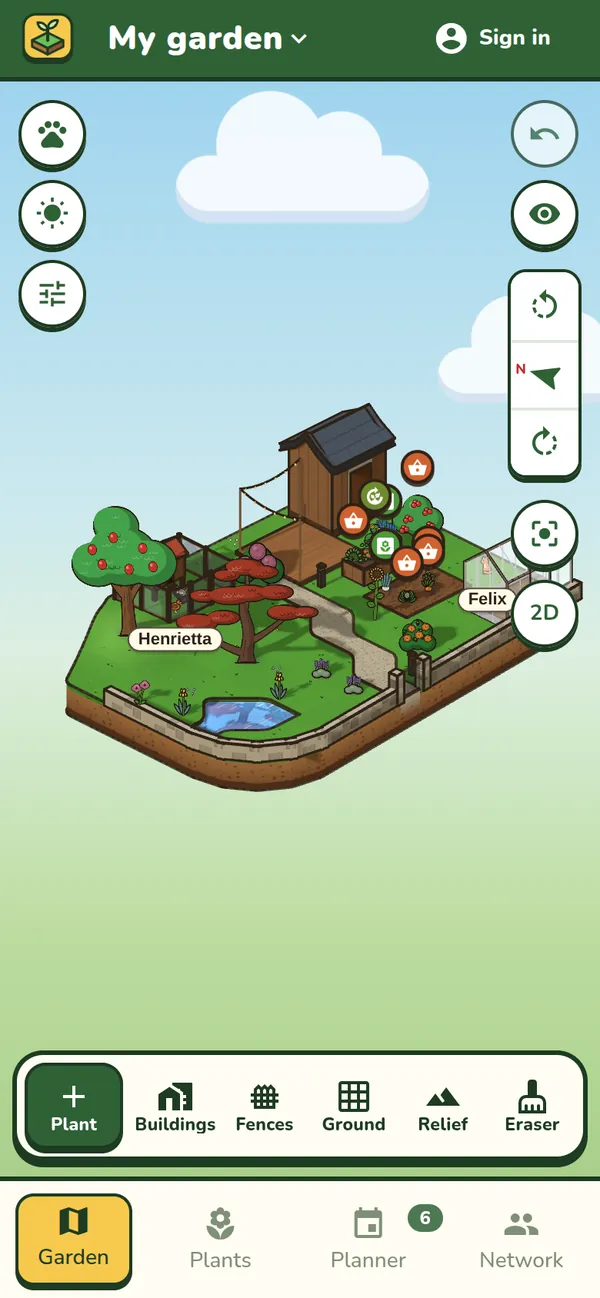
This isn’t my garden: where does it come from?
It’s the demo garden, for trying out the app. Draw your plot and it takes its place.
The demo plants, buildings and pets you haven’t changed then disappear; anything you’ve added stays.
Do I need an account?
Not to try it out. Without an account, your garden stays on this device.
With an account, it’s backed up and synced between your devices. You also need one to identify a plant from a photo and to visit your friends’ gardens.
Does Jardingo work offline?
Yes. Your changes stay on the device and are sent as soon as you’re back online: the icon at the top right shows how syncing is going.
You need a connection to identify a plant from a photo, get the weather, open a plant’s full sheet and visit your friends’ gardens.
How do I have several gardens?
Tap the garden’s name at the top of the screen: “My gardens” opens. Create a “New garden” there and switch from one to another.
A garden’s ⋮ button lets you rename, share or delete it.
Your plot and its layout
How do I draw my plot?
In the garden, “Draw my plot”. Search for your address, or let the app find you.
In France, Belgium, the Netherlands, Switzerland and Quebec, tap your parcel on the map to use its official land registry outline, then “Use”. Your garden covers several parcels? Tap the neighbouring ones to add them.
Elsewhere, or if the registry doesn’t match: “Draw by hand”. Place the corners one by one, then tap the first point to close the outline.
Finish with “Confirm plot”.
Find out more: Your plot from the aerial photo
How do I correct my plot’s outline?
Switch to build mode with the button, on the right of the garden, then “Plot”.
Drag the points. Pull a ◦ handle to curve a side; double-tap it to straighten it again. Then “Confirm plot”.
My plot slopes: how do I add relief?
In France, when you confirm your plot, Jardingo offers the IGN relief data: keep it or flatten it.
To adjust it: build mode , then “Relief”. Choose “Flat” (terrace, mound) or “Sloping” (path, driveway), swipe over the area, then drag its ↕ handle to raise or dig it.
“More options” goes back to the IGN relief or flattens everything.
Find out more: Your plot from the aerial photo
How do I draw my house?
Build mode , then “Buildings”. Buildings known to the IGN show up hatched: tap “Build here” and say what it is (house, garage, shed…).
No hatched area? “Add a building”, then tap the plot where it goes.
Then tap a building to edit it: the “Footprint” tab moves, rotates and resizes it; the other tabs set its walls, roof and openings. Doors and windows are placed in the 3D view.
Find out more: 3D garden planner
How do I add a greenhouse, a raised bed, a chicken coop?
Build mode , “Buildings”, then “Add a building”: garden shed, greenhouse, polytunnel, raised bed, flower box, chicken coop, rabbit hutch, compost bin, pool, pergola, garden light, string lights…
Plants placed in a bed or under a greenhouse grow there, and the planner takes it into account.
Find out more: Vegetable garden planner
How do I add a hedge, a fence, a gate?
Build mode , then “Fences”. Choose the type, then tap the plot point by point. Tap the last point to finish, or the first to close the loop.
Then tap a fence to edit it, delete it or add a gate.
How do I make a patio, a path, a lawn?
Build mode , then “Ground”. Choose a patio (wood, slab, pavers, stone) or a ground cover (lawn, soil, sand, gravel, water), then swipe over the tiles to cover.
How do I erase something?
Build mode , then “Eraser”: swipe over what you want to erase (plants, buildings, fences, patios).
For a single plant, open its card and use .
I made a mistake: how do I go back?
The button, on the right of the garden, undoes the last action. Again: the one before, and so on. On a keyboard: Ctrl+Z.
Your plants
How do I add a plant?
In the garden, the button at the bottom right: “Choose from the list” or “Take a photo”. Then tap the plot where it grows.
Or tap a free patch of ground, then “Plant here”.
Find out more: Plant guides
How do I identify a plant from a photo?
On a phone, “Take a photo”. Photograph a leaf, a flower, a fruit or the bark, and say what you photographed if the species isn’t found.
You need an account and a connection, and the number of photos per day is limited. Not recognised? Look it up in the list.
My plant isn’t in the list
Try another name: its common name, its Latin name, or a photo.
Otherwise, type its name and add it as it is: it takes its place in the garden, but without a sheet or tasks in the planner.
How do I move, resize or remove a plant?
Tap the plant: its card opens at the bottom of the screen. Drag the plant to move it.
At the bottom of the card, “−” and “+” change its height (or tap the height to type it). duplicates it, removes it.
How do I find a plant in the garden?
“Plants” tab: open the plant, then “Show in my garden”. It’s circled on the plot until you close the banner at the top.
In the garden, the button shows each plant’s name.
What is the planting date for?
For a vegetable or an annual, it tells the planner what’s in the ground this season (thinning seedlings, for example). You set it in the plant’s journal.
Open the plant’s card, then “Details” and the “Journal” tab.
How do I keep track of my flowering and harvests?
Each plant has its own journal: open its card, “Details”, then “Plant journal” (or from the “Plants” tab).
Note down flowering, a harvest or something you noticed, with a photo. Visitors to your garden don’t see your journal.
Will my plants have enough room?
The button, on the left of the garden, moves time forward by 1 to 20 years. The plants grow, and the list shows which ones will crowd each other, spill over the plot or touch a building.
Find out more: How fast trees grow
The planner
Where do the planner’s tasks come from?
They’re worked out for each plant whose species is known: sowing, pruning, harvesting… in the species’ months, shifted to suit your garden’s climate.
The weather adds watering and protection against frost or heatwaves. For that, your plot must be drawn: it tells the app where your garden is.
Find out more: Garden jobs month by month
How do I tick off or skip a task?
The circle on the right of a task marks it done; “Skip” sets it aside this time. It then goes to “Done”, where the same circle puts it back in the planner.
The task itself takes you to the plant in the garden.
I don’t know how to do a task
“How to” on the task: an animated gesture, the steps, and what the plant’s sheet says about it.
A plant has no tasks
It may have been added under a name that isn’t in the list: the planner doesn’t know its species.
Otherwise, there’s nothing to do right now: look at “Coming up” and “Later”.
Some tasks don’t apply to me
The button at the top of the planner opens “Tasks shown”: switch off what you don’t do. Those tasks disappear from the planner, the garden and the reminders.
How do I add my own task?
“Add a task”, in the planner or on a plant’s card: what to do, when, whether it repeats, and for which plants.
How do I get reminders?
On a phone, switch on “Notify me at 8 am when there’s something to do” in the planner.
What about the lunar calendar?
It’s optional. The moon at the top of the planner shows it: each task then shows the favourable days according to tradition. You can hide it from the calendar.
Viewing your garden
How do I move around, zoom and rotate?
By touch: swipe to move, pinch to zoom, twist two fingers to rotate.
With a mouse: scroll wheel to zoom, right-click and drag to rotate.
All gestures and shortcuts: the button, on the left of the garden.
What is “Build mode” for?
By default, you’re gardening: you plant and look after your plants. Build mode, the button on the right, is for laying out the garden: buildings, fences, ground, relief, eraser and the plot outline.
“Exit”, at the top, takes you back to the garden.
3D view or 2D plan?
The button, on the right, switches to the top-down plan, and from there back to 3D. The plan is more precise for placing plants; once your plot is drawn, the button lays the aerial photo over it.
Find out more: 3D garden planner
How do I see sun and shade?
The button, on the left of the garden: choose a time to see the shadows at that moment of the day.
In the display settings , “Light follows the time of day” follows the real time.
Find out more: 3D garden planner
How do I look at the garden without the buttons?
The button, on the right, switches to spectator mode: nothing can be changed by mistake. “Exit” (or Esc) leaves it.
How do I add my pets?
The button, on the left of the garden: cat, dog, hen, rabbit, goat, goose or sheep, with its name and coat.
They react when you touch them. Hens and rabbits need a chicken coop or a rabbit hutch: place one in build mode .
What is the letterbox for?
Two tabs. “Post” gets everything addressed to you, the same in all your gardens: letters from your friends (private), Village messages and alerts (a plant from your wishlist given away near you, a plant from your garden wanted by a neighbour), new notes in your guestbooks and friend requests. The “Newspaper” comes out every Monday. Its front page shows today’s weather, the week’s games and the headlines of news from Jardingo: tap a box to open it (the whole week’s weather and moon, the games, the full article). A letter sticks out of the slot when there’s post waiting, a newspaper when the new issue is in.
Open it with the button at the top of the screen, or by touching it in the garden. The guestbook keeps the notes your visitors leave for everyone: open it with the button. In build mode, you can move the letterbox.
Village: give and swap
How do I give away or swap a plant?
“Village” tab, “Market”: “Join the market” with your garden and a radius. Then “I’m giving” or “I’m looking”: the plant, its form, and what you’d like in exchange, or nothing.
Neighbours who have it on their wishlist, or in their garden, are told in their letterbox. You agree on the details in the listing’s conversation. Never money: only giveaways and swaps.
What is my wishlist for?
“Plants” tab, “Wishlist”: note the plants you’d like to have, or tap “I want one” when visiting a friend’s garden.
When a neighbour gives one away, an alert arrives in your letterbox.
What do my neighbours see of me?
Your username, your garden’s town and a distance rounded to the kilometre; never your address. Only accounts that have joined the market see your listings: those within your radius, and your friends. People you chat with also see the list of your plants, unless you turn it off in the market settings.
An inappropriate listing or message: ⋮ button, “Report”.
Friends and sharing
How do I add a friend?
“Village” tab, “Friends” (with an account): send your invitation link with “Share”, or give your code. You can also “Add by username”.
A friend gave you their code? “I got a code”.
Who can see my garden?
Your friends see the gardens set to “Friends”, the starting setting; nobody else does. Neither your address nor your journal is shown to them.
To keep a garden to yourself: “My gardens”, the garden’s ⋮ button, “Private”.
How do I visit a garden and write to its owner?
“Village” tab, “Friends”, “My friends’ gardens”: choose a garden to visit it. “Write a letter” sends a private letter to its owner, about one of their plants if you like (from the plant’s sheet). The “Guestbook” keeps visitors’ public notes. You can also write to a friend from your friends list.
How do we look after the same garden together?
“My gardens”, the garden’s ⋮ button, “Edit together…”, then choose from your friends. They edit the garden as you do and see its address, but can neither delete nor share it.
Account and settings
How do I change the language?
Tap the logo at the top left, then “Language”.
How do I change my password or delete my account?
The account button at the top right: email address, password, linked Google or Apple accounts, signing out and deleting the account.
A bug, an idea, a question not answered here?
Tap the logo at the top left, then “Send feedback”. Tell us what’s getting in your way: it helps us improve the app and this help.